Every claim in this handbook carries a tag, so you can tell documentation from observation from opinion.
- DDocumented. Documented by Microsoft on Learn, Support, Message center, GitHub or an official blog, as of the dates in Appendix E
- OObserved. Observed first-hand on 7 November 2026 in a live Copilot Code cloud session: its tools, its sandbox, an example tenant's policy verdicts, and the repository of a production partner-sales app
- CCommunity. Reported by the community (MVP blogs, forums, videos, GitHub issues) and not confirmed by Microsoft
- IInference. Inference or recommendation by the author; test it before you rely on it
Part 4
How the platform fits together
- What it isHow Copilot Managed Runtime works: one app record and Git repository behind every builder, the project files, and the preview, publish and live pipeline.
- What you doTreat the repository as the source of truth, deploy named commits, and fetch before every deploy when more than one session edits the app.
- Watch outA push does not build, and a deploy from a stale clone can roll the live app back to older code.
Decide this in the setup Step 4: Screens and features
Swipe sideways to see the whole figure, or read it as text below.
Read the figure as text
Five front doors (Cowork's App skill, Code cloud and local sessions, Copilot Studio Apps and the ms CLI) commit to one app record and Git repository in the maker's personal developer environment. That record deploys to the Copilot Managed Runtime host, the app's play link, the managedapps.cloud.microsoft portal and the Microsoft 365 admin center.
Numbers from the claim register: 18 Microsoft first-party connectors D (section 9.4); 12 in the default allow-list D (section 9.4).
4.1One runtime, many front doors
Copilot Managed Runtime is Microsoft's hosting layer for line-of-business web apps inside the Microsoft 365 tenant boundary. It entered public preview on 25 September 2026 and already powers the apps built in Copilot Cowork, Copilot Code and Copilot Studio; an SDK and CLI let professional developers and third-party tools deploy to it as well, and Lovable was the launch example. D Whatever you build with, the result is the same kind of artifact: a single-page web app that runs in a Microsoft-hosted sandboxed frame, signs people in with Entra ID, follows the tenant's policies and appears in the Microsoft 365 admin center. App code and assets are served only after sign-in and a permission check, and the host keeps its tokens out of the app code's reach. D
Figure 1 is shown at the top of this part.
| Role | Where they work | What they do |
|---|---|---|
| User | managedapps.cloud.microsoft | Finds and opens the apps shared with them |
| Maker | Cowork, Code cloud sessions, Copilot Studio | Describes an app in chat, previews it, publishes and shares it |
| Developer | ms CLI and SDK, Code local sessions, coding agents with the Microsoft plugin | Clones the repository, codes, tests and deploys |
| Admin | Microsoft 365 admin center, Apps | Sees every app, reviews default policy, monitors health, blocks or deletes |
4.2The front doors compared
Re-check after Ignite
| Front door | Best for | How you start | Enablement and status |
|---|---|---|---|
| Cowork App skill | Business users who live in Microsoft 365 | In Cowork, ask for an app, or type /app and describe it | Frontier; needs a Microsoft 365 Copilot license, Cowork access and usage-based billing D |
| Copilot Code, cloud session | Makers and developers who want engineering control | Code tab, describe the app; the cloud session is a maker experience similar to Cowork | Frontier preview. Copilot Code is gated by a Copilot spending policy that includes Code, plus Frontier membership and, on Windows, the Beta channel. There is no separate Code on/off switch, but your admin has to act; it is not automatic for everyone. D |
| Copilot Code, local session | Developers working in folders on their own device | Open a folder in the Copilot desktop app | Secure local execution needs Windows 11 24H2 or later; Mac protection is planned D |
| Copilot Studio Apps | Makers who want plan, draft and preview beside agents and flows | Copilot Studio, Apps (preview) | Public preview, on by default; admins can restrict it D |
| ms CLI and SDK | Professional developers, CI/CD, third-party tools | npm install -g @microsoft/managed-apps-cli, then ms auth login and ms app create | Off by default; an admin enables it in the Power Platform admin center D |
Two more doors matter for developers. Microsoft publishes a coding-agent plugin that adds managed-app skills and slash commands (/create-app, /dev, /deploy, /share, /add-sharepoint, /add-dataverse, /add-workiq and others) to GitHub Copilot, and it also works in other agents that read the open plugin format. DC And on 5 November 2026 the original microsoft/Managed-Apps repository was archived in favor of microsoft/Copilot-Managed-Runtime, with packages moving to @microsoft/cmr-apps and @microsoft/cmr-cli while Learn still shows the old names. C
4.3Anatomy of a managed app
Under the chat, a managed app is an ordinary modern web project. A production partner-sales app examined for this guide, created from the chat template, is React and TypeScript on Vite, styled with Tailwind v4 and Radix-based components, built with Bun, and wired to Microsoft services through the @microsoft/managed-apps SDK. O
| Item | What it is | Who should change it |
|---|---|---|
| ms.config.json | App id, environment, repository, build command (npm run build), entry point (index.html), output folder (dist) and one connection reference per bound connector O | Binding tools only: Code's data-source tools or ms app add, refresh and remove data-source OD |
| generated/ | Typed models and services for each bound connector, plus a dataSources index O | Regenerated by a refresh, never edited by hand D |
| src/ | Your screens, logic and styles O | You and the agent |
| AGENTS.md, THEMING.md, README.md | Template guidance written for any coding agent: stack, structure, conventions, capability controls and theming O | Template-owned; keep project rules in your own files and link to them I |
| Locked template files | The camera, barcode, pen, PDF, 3D and shortcut controls, and the message contract with the host frame O | Don't edit; use the controls as provided O |
| package.json, vite.config.ts, bun.lock | Build tooling, already carrying libraries for charts, tables, drag and drop, dates, Excel and PDF O | Add a dependency only with a stated reason I |
| Your additions | Spec, decisions log, release rubric, release log, tests | You (Part 18 lists the set) |
Each app carries four identifiers, and mixing them up is a common source of confusion: the workspace app id (the folder name in a Code session), the managed app id (the one in the play link), the environment id (your personal developer environment) and the repository id. A Code session can list your apps, read their metadata and load any of them by id. O
The template is also where the hidden capability lives. Every app created from it ships with ready-made controls for pen input (signatures and sign-offs), camera capture (inspections, receipts, asset photos), barcode and QR scanning, 3D model viewing (glTF, GLB, OBJ, STL), PDF export and viewing (up to 25 MB), keyboard shortcuts and a command palette, and a spatial map that needs a spatial services binding to work. Real three.js scenes and simple games are explicitly supported. The template blocks direct use of the underlying libraries so that every app uses the same tested controls. O
4.4Preview, publish and live
Re-check after Ignite
The build pipeline is Git-driven and deliberately split. A git push does not build anything. The platform builds on demand: when someone opens the preview, deploys, or runs a build. The preview URL is stable for each app, always shows the latest successful build of main, and is visible only to people with write access to the repository. The live app changes only on a deploy, which promotes one build; if the latest build failed, a deploy falls back to the last good build with a warning, and you can pin an older commit to roll back without rewriting history. D
The chat surfaces wrap this differently. In Cowork you select Publish, and you must publish again after every change for shared users to get it. D In Code, building saves automatically but never publishes. The app goes live only when you ask Code to publish it, with "Publish it" or "Make it live," and every share is a separate request. D Publishing is not sharing: a published app stays private until you share it.
4.5Why Code and Cowork publish to the same URL
Because the URL is the app's, not the tool's. An app is a record in your personal developer environment plus a Git repository, and the play link is keyed to that record. Code and Cowork are two conversational front ends to the same app service: the tools a Code session uses to build, preview, publish, share, connect and bind data are described in terms of Cowork's sign-in cards and Copilot Studio's environments as well, which is a strong sign that one service sits behind all three. O Microsoft's own scenario describes exactly this hand-off: a team builds an app in Cowork, and a developer pulls the code down and keeps building on it without forking it or standing up a separate runtime. D
So when you edit the same app from Code and from Cowork at the same time, you are not editing two copies. You are running two Git clones of one repository, and both can publish to the one live slot.
4.6What happens when two sessions edit the same app
Microsoft documents the collaboration model as Git (anyone with edit access clones, pulls before each session and pushes) but does not document what happens when an agent and a developer push to the same app at once. D The table below is what that means in practice, based on Git mechanics and the release history of a production partner-sales app. OI
| Situation | What happens | What to do |
|---|---|---|
| Two sessions change different files | The second push is rejected until it rebases; both changes survive | git pull --rebase, rerun the checks, push, deploy the new tip O |
| Two sessions change the same lines | The rebase stops on a conflict | Resolve it in the session that owns that area, then rerun every check I |
| A session deploys from a stale clone | Its deploy can roll the live app back to older code | Always fetch and compare with the remote main before deploying O |
| Work seems to have disappeared | Usually another session already shipped it | Fetch and read the log before rebuilding anything O |
| git push is refused as "disabled" | Some sessions block direct pushes | Use the publish step, which pushes, builds and deploys in one call O |
| Your local commit id differs from the remote tip | The platform adds its own commit on top of each push | After pull --rebase, deploy the remote tip, never your local id O |
| A fetch fails with an I/O or write error in a cloud workspace | The workspace file system, or repository size | Retry with git -c core.logAllRefUpdates=false fetch, and keep an eye on the object count O |
| The latest build failed | A deploy falls back to the last good build, with a warning | Read the build log, fix, and redeploy the commit you meant D |
Part 5
A tour of Cowork for app builders
- What it isA tour of Cowork's controls for app builders: the composer, tasks, projects, automations, skills, the local browser and the build-to-share steps.
- What you doGive each app its own Project with instructions, and publish again after every change you want users to see.
- Watch outThe local browser works only on the web in Edge with an admin opt-in, and deleting an app is permanent.
Cowork is a delegation tool first and an app builder second, which is exactly why it is good at the work around an app. This tour covers the controls that matter for building, publishing and running apps. Labels are Microsoft's as of 7 November 2026; Frontier tenants see the new navigation first. D
Cowork limits that matter to app builders
- 250,000 characters per promptEnough for a full specD section 5.2
- Under 200 MB per attachmentFiles you attach with +D section 5.2
- Up to 25 scheduled promptsOn the Automations pageD section 5.5
- Up to 20 KB of personal instructionsUnder PreferencesD section 5.6
- 50 custom skills per userShared or privateD section 5.6
- 1 MB per SKILL.mdThe skill file itselfD section 5.6
- 20 companion files per skillFiles beside SKILL.mdD section 5.6
- 10 MB per skill in totalAll of its filesD section 5.6
Show the data
| Item | As stated | Unit | Evidence | Part | Source |
|---|---|---|---|---|---|
| characters per prompt | 250,000 characters | characters per prompt | D | 5 (5.2) | Source |
| MB per attachment | under 200 MB | MB per attachment (under) | D | 5 (5.2) | In the part text |
| scheduled prompts | up to 25 scheduled prompts | scheduled prompts | D | 5 (5.5) | Source |
| KB of personal instructions | up to 20 KB | KB of personal instructions | D | 5 (5.6) | Source |
| custom skills per user | 50 skills | custom skills | D | 5 (5.6) | Source |
| MB per SKILL.md | 1 MB per SKILL.md | MB per SKILL.md | D | 5 (5.6) | Source |
| companion files per skill | 20 companion files | companion files per skill | D | 5 (5.6) | Source |
| MB per skill in total | 10 MB per skill | MB per skill | D | 5 (5.6) | Source |
5.1Getting in
- Open Microsoft Copilot (web or desktop) and select Cowork at the top of the page. On Frontier tenants, select the Home tab, where a Chat and Cowork toggle sits in the conversation box. D
- The new navigation pane carries Agents & Plugins, Automations, Workspaces and Projects; it reached Frontier in October and rolls out worldwide in November. Agents & Plugins replaces the older Customize entry point. D
- Home shows your recent tasks, Search, Automations, the model picker and the effort level, plus suggested prompts including Build an app. D
5.2The composer
- Prompts can run to 250,000 characters, enough for a full spec pasted in. D
- Add attachments (+) offers Add work context, Upload images and files, and Attach cloud files and folders; you can also drag files in. Attachments must be under 200 MB. D
- Voice: the microphone button in the input, where your browser supports it. D
- Typing / opens a context picker: the Copilot tab lists earlier chats and Cowork tasks you can attach, so a spec drafted in Chat can feed the App skill. Choose from the picker rather than typing a title. D
- Sources and skills: a picker in the conversation chooses which plugins and skills a request may use; on mobile it is under the attach menu, Skills. D
- Model: the model dropdown defaults to Auto and remembers your choice per device. The current list is in the model table in section 8.1. D
- Effort: a dropdown next to the model picker with Light, Medium (the default), High, Extra High and Max. Higher effort is more thorough, slower and uses more credits; it persists until you change it. D
5.3While a task runs
- You see each tool step, a streamed reply and interactive cards, with a connection status (Connecting, Connected, Reconnecting, Failed, with Retry). Messages you send while Cowork works are queued, so you can steer without stopping it. D
- Questions arrive as a set of choices: pick one, type your own answer or select Skip; use the arrow keys and Space, then Submit. The task shows Needs user input until you answer. D
- Approvals show the action (Send, Post or Create), Show parameters, Cancel and a risk level for medium- and high-risk actions. More options can skip similar prompts for the session, and for mail and Teams messages you can scope that to one recipient, a domain or always. D
- Revoke any "Approve & don't ask again" choice later under Permissions in the side panel. D
- Pause comes in two strengths: soft (after the current step) and hard (immediately), with Resume and Cancel. D
5.4Side panel, tasks and projects
- The side panel shows Progress, the Input and Output folders (Download and Preview per file; Download All makes a ZIP of up to 50 files and 500 MB), and Skills, Schedule and Permissions. D
- Tasks can be filtered by Needs your input, In progress, Complete, Automations and Unread. D
- Projects are private workspaces: create one with + next to Projects, give it a name and color, and use Edit instructions. Project instructions take precedence over your global instructions, so one Project per app is the cleanest way to give every session the same spec, schema and rules. Files can't yet be removed from a project's outputs. DI
5.5Automations
- The Automations page has Runs and Manage schedules and a Create button; finish with Activate, or Activate and run now to watch the first run. You can keep up to 25 scheduled prompts, and Microsoft limits how often they run. D
- Event triggers use a "Set up trigger?" card (When, Run in, What it does) and can fire on matching mail or Teams posts, including when you're @mentioned. Triggered actions draft for your approval by default. D
- For app owners this is the cheapest monitoring there is: a weekday check that opens the app, compares totals with the source and messages you the differences (Part 23). I
5.6Customize: preferences, plugins and skills
- Preferences hold your instructions (up to 20 KB); type / inside them to reference a skill, file, person or meeting. D
- Plugins has Installed, Discover and Upload plugin; plugins installed here are also available to Code. D
- Skills has Your skills and Built-in (the App skill is listed as "App (Frontier)"). Create one with Add, Create new, or upload a SKILL.md; share it with Only you or Specific users in your organization, and Re-share after editing. Limits: 50 skills, 1 MB per SKILL.md, 20 companion files and 10 MB per skill; Cowork scores each skill from 0 to 100 for trigger clarity, specificity, scope and robustness. D
- No memory screen is documented for Cowork; use instructions and Projects for anything every session must know. DI
5.7The local browser
Cowork on the web can drive a hidden Microsoft Edge tab that uses your own sign-in, which is how it can open your live app as a real user. An admin turns on the Cowork Browsing tenant setting; you need Edge 152.0.4191.53 or later and a one-time "I understand" consent; it works on the web only, not in the desktop or mobile apps, and your computer must stay awake. D
5.8Build, publish, share and update an app, step by step
- Check prerequisites: a Microsoft 365 Copilot license, Cowork access, usage-based billing and Frontier membership. D
- Start: describe the app ("Build an app to run my daily scrum with my team"), or type /app, a space, and paste your prompt. Attach the spec, spreadsheets and screenshots with the + menu. Cowork invokes the App skill, and it can generate the data schema in a supported connector instead of starting on placeholder data. D
- Approve: review and approve requests to reach your lists. The first build also creates your personal developer environment, which takes a few minutes. D
- Test: open the app from the conversation or the editing screen and preview each change. D
- Publish: your app saves as you work, but users see a change only after you select Publish, every time. D
- Share: open the app for editing and select Share to generate a sharing link, or add people or groups in the input box. If the app will move to another environment, move it before you share it (Part 15). D
- Update later: the app lives in a conversation usually named Edit Application or Edit Application Settings. Use More options, Rename or Pin to find it again, chat your changes, review the preview and Publish. You can also open the app in Copilot Studio. D
- Version history and rollback: no version screen is documented in Cowork, although every change is a Git commit underneath. Roll back from Code or the CLI by redeploying an earlier commit (Part 20). DI
- Delete: "Delete my app named Project Tracker." Deletion is permanent; admins can block an app instead. D
5.9Prompts that work in Cowork
"Load my app Partner Tracker (<app id>)." Reopens an app in a new task. D
"Continue with the deferred items." Resumes a build that Cowork staged into passes. D
"Connect it to my existing SharePoint lists on <site URL>: <list names>. Don't create new lists, and don't use sample data." Fixes an app built on sample data. D
"I'm migrating my app. I built this app, and I want it rebuilt exactly." For faithful rebuilds; avoid "similar to" or "inspired by", which invite reinterpretation. D
"Move this app to this environment with the environment ID: <id>." Find the id in Power Apps under Settings, Session details. Dataverse tables don't move with it. D
Part 6
A tour of Copilot Code for app builders
- What it isA tour of Copilot Code: cloud and local sessions, the composer, working modes, preview, publishing, GitHub and what Code can see.
- What you doUse Plan mode to write the plan into a file, and turn Always allow off when you finish a focused run.
- Watch outBuilding never publishes, the interactive browser was off in the session tested, and hand edits work only in local sessions.
Code is an engineering workspace that happens to be very good at apps. It writes and runs code in a sandbox, keeps your project across sessions and devices, and drives the same app service Cowork uses. This tour covers its screens and settings; the next part covers what to type. DO
6.1Getting in and the home screen
- Open the Microsoft Copilot app, or go to copilot.cloud.microsoft, and select Code in the tab switcher at the top (Part 3 explains when it is missing). D
- The home screen has a task input, suggested prompts such as Build a dashboard and Automate a workflow, Create new to start a project, Search to find an earlier one, Recents, and the model picker. Projects save automatically. D
6.2Cloud or local
| Cloud session | Local session | |
|---|---|---|
| Where it runs | A secure, isolated cloud workspace you can reach from any device | Folders on your own device, the default location or one you choose |
| Where available | Web and desktop app | Desktop app only; off until an admin allows it |
| Code view | See generated files | See and edit generated files |
| Organizational data | On by default | Off by default |
| Extra protection | Isolated workspace | Secure local execution on Windows 11 24H2: allowed folders, blocked file paths and outbound network rules (approved hosts only by default) |
Admin defaults also matter: components aren't pre-installed, auto-approve is on, execution location is cloud only, and the GitHub connection is off until an admin allows GitHub.com, GitHub Enterprise or both. D One community tester reported that local mode ran without a sandbox in his setup, against Learn's statement that secure local execution is on by default, so check the setting before working on sensitive folders. C
6.3The composer
- + uploads files or attaches work context; drag in CSV files, spreadsheets, images, documents, PDFs and presentations (up to 200 MB per file), or paste text. In a local session you can also open an existing folder. D
- Work context: with your permission, Code draws on your documents, email, meetings and calendar through Work IQ, and asks clarifying questions before it builds. D
- Models: a model picker, with Auto as the default in cloud sessions. The current list is in the model table in section 8.1. D
6.4Working modes and permissions
- Interactive (the default) is step-by-step collaboration; Plan develops a plan you can question and refine before any change; Automatic runs end to end and is available only when Always allow is on. Automatic doesn't grant unrestricted access or remove every approval. D
- By default Code asks before it makes network calls, uses extensions and MCP servers, runs shell or terminal commands, or reads and writes files outside the project. D
- Always allow stays on, for existing and new sessions, until you turn it off. Turn it on for a focused run, then off again. DI
6.5Canvas, preview and code view
- While Code works you see its progress steps; it may stop to ask questions, often as multiple choice. DO
- Preview shows the running app; select an element in the preview to point Code at it instead of describing it. D
- Code view shows the generated files; editing them by hand is local only. D
- Undo by asking Code to revert to an earlier version; for an app, that means redeploying an earlier commit (Part 20). DO
- Export a project as a .zip. D
6.6Publishing, sharing, deleting and GitHub
Re-check after Ignite
- Building saves automatically but never publishes. The app goes live only when you ask Code to publish it. Ask: "Publish it" or "Make it live," and check the reply for the live link before you tell anyone. DI
- Share by asking: "Share it with the Partner Sales group so they can use it." Code resolves the people or groups and grants use or edit access (Part 15). A static page, as opposed to an app, can be shared as an organization-scoped link in cloud sessions. DO
- Delete by asking Code to delete something it created. D
- GitHub: connect your account from the side navigation to work with repositories, warm-start from one, open draft pull requests and see their status in My Work; creating repositories is local only. D
6.7Plan mode, properly used
Plan mode is documented under Get started, Choose a working mode. Across the industry, plan modes promise different things; only one vendor documents a strict guarantee that nothing changes until you approve, so treat plan approval as a checkpoint rather than a sandbox. DC
The most effective use is to make the plan produce a file. Ask the plan to write or update DESIGN.md with numbered items, review it, then build one item per change. A plan that lives only in the chat can be lost when the session ends; section 8.1 covers what Code remembers. I
6.8Can Code see what it built?
There are three answers, and they are often confused.
You can see it. The canvas beside the chat shows the live preview, and you can select an element to point the agent at it. D
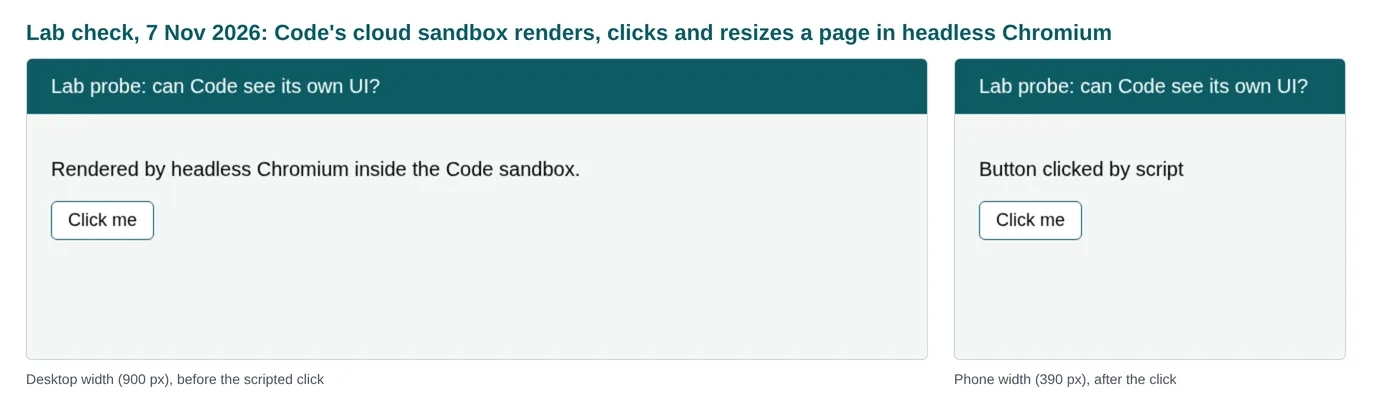
The agent can see it, with a script. In the cloud session tested on 7 November 2026, the interactive browser tool reported that local browsing was not enabled for the workspace. But the sandbox ships a full headless Chromium with Playwright (they are there to render documents), and a short script can open a page, click a button, read the result, resize to phone width and save screenshots that the agent then inspects. The figure shows the probe. The limits are real: the headless browser cannot sign in as you and connector calls do not work outside the host, so it suits layout and flow checks against fixture data, not end-to-end checks against live data. O
Figure 2 is shown at the top of this part.
Cowork can see the live app. Cowork on the web, running in Microsoft Edge 152 or later, can drive a hidden Edge tab with your own sign-in, so it can open the play link and walk a checklist with real data and your real permissions. Your admin must enable Cowork Browsing, and the desktop app does not support it. D
6.9What Code could not do in the session tested, and what isn't documented
Re-check after Ignite
- Open an interactive browser: switched off for the workspace. O
- Sign in to the live app as you, or call connectors outside the preview host. OI
- Push directly to the app repository in some sessions, where the push was refused as "disabled"; the publish step pushed and deployed instead. O
- Create a tenant-wide share link, which only the CLI offers. OD
- Accept hand edits in the code view for a cloud session; that is local only. D
- Not documented by Microsoft for Code at this release: slash commands, keyboard shortcuts, a diff view, a terminal pane, an in-session cost display and specialist sub-agents. D In the session tested, Code nevertheless ran shell commands and dispatched an independent reviewer and parallel researchers on request. O A /cost command is not documented for Code I; builders report that it works there C.
Part 7
Commands, shortcuts and power moves
- What it isThe few documented commands, the keyboard shortcuts, the phrases that reliably change behavior, and a map of capabilities with how to invoke each one.
- What you doCopy the phrases from sections 7.3 and 7.4 rather than guessing, and ask for behavior in words when no command exists.
- Watch outSlash commands from the GitHub Copilot app don't carry over to Copilot Code, and some entries are observed rather than documented.
Most of what makes these tools powerful is not on a button. Microsoft documents very few commands, so the real skill is knowing the handful that exist, the phrases that reliably change behavior, and which commands people quote from other products that don't apply here.
7.1Slash commands and pickers
Re-check after Ignite
| Type this | Where | What it does | Status |
|---|---|---|---|
| /app, a space, then your prompt | Cowork | Invokes the App skill directly; a plain-language request for an app also works | D |
| /cost | Cowork | Shows approximate credits for the current task, month-to-date use, what remains and when it resets; free to run. A /cost command is not documented for Code I; builders report that it works there C | D |
| / in the composer | Cowork | Opens the context picker: Copilot (earlier chats and Cowork tasks) and Chats | D |
| / in Preferences | Cowork | References a skill, file, person or meeting inside your instructions | D |
| / and @ | Copilot Chat | Calls agents (/) or skills (@) inline in Chat; not documented for Cowork or Code | D |
| Any slash command | Code | None documented at this release | D |
| /plan, /fork, /fleet, /review, /rubber-duck, /model | The GitHub Copilot app, a different product | Don't assume they work in Copilot Code; ask for the behavior in words instead | D |
| /create-app, /deploy, /share and the rest | Coding agents with Microsoft's plugin | The CLI workflows from Part 22, inside GitHub Copilot CLI or Claude Code | D |
7.2Keyboard and mouse
| Action | How | Status |
|---|---|---|
| See every Cowork shortcut | Ctrl+Shift+/ (or the shortcuts button in the header) | D |
| Send | Enter | D |
| Answer a multiple-choice question | Arrow keys and Space, then Submit | D |
| Find text in a PDF preview | Ctrl+F | D |
| Attach files | Drag and drop, the + menu, or paste text | D |
| Talk instead of type | The microphone button, browser permitting | D |
| Steer without stopping | Type while Cowork works; messages queue | D |
| Stop | Pause (soft or hard), Resume, Cancel | D |
| Find an app's conversation later | More options, Rename or Pin | D |
| Point at part of the app | Select the element in Code's preview | D |
7.3Phrases that reliably change behavior
| Say | Where | Effect | Status |
|---|---|---|---|
| Plan first. Don't change any files until I approve the plan. | Code (or pick Plan mode) | Produces a reviewable plan before work starts | DO |
| Ask me what you need to know first, as multiple-choice questions. | Code, Cowork | Front-loads the decisions instead of guessing | O |
| Publish it or "Make it live" | Code | Publishes the current version | D |
| Share it with <group> so they can use it or "...edit it" | Code | Grants play or edit access | DO |
| Load my app <name> (<app id>) | Cowork | Reopens an app in a fresh task | D |
| Continue with the deferred items. | Cowork | Resumes a staged build | D |
| Connect it to my existing SharePoint lists on <site>: <lists>. Don't create new lists, and don't use sample data. | Cowork, Code | Binds real data and stops the sample-data fallback | D |
| I'm migrating my app. I built this app. | Cowork | Asks for a faithful rebuild rather than a reinterpretation | D |
| Move this app to this environment with the environment ID: <id>. | Cowork | Moves the app; reshare afterwards | D |
| Revert to the version before the last change. | Code | Rolls back | D |
| Have an independent reviewer score this change against QUALITY-RUBRIC.md. | Code | Dispatches a separate reviewer | O |
| Send me a daily briefing every morning at 9 AM. | Cowork | Creates a scheduled prompt | D |
| Delete my app named <name>. | Cowork, Code | Permanent deletion | D |
7.4The capability map
The map below lists what exists, how sure we are, and the words that trigger it.
| Capability | Where | Status | How to invoke it |
|---|---|---|---|
| Plan mode | Code | D | Pick Plan in the composer, or say "Plan first. Don't change any files until I approve the plan." |
| Automatic mode | Code | D | Turn on Always allow, then pick Automatic; protected actions still ask |
| Plan-first in Cowork | Cowork | C | Before you build, list the screens, data, navigation and acceptance criteria, then wait for my OK. |
| Multiple-choice clarifying questions | Code | DO | Ask me what you need to know first, as multiple-choice questions. |
| Model and effort choice | Code, Cowork | D | Model picker in both; Cowork adds effort from Light to Max |
| Independent reviewer | Code | O | Have an independent reviewer score this change against QUALITY-RUBRIC.md and list the missing points. |
| Security review | Code | O | Run a security review of the app: secrets, unsafe HTML, injection, data exposure, risky dependencies. |
| Deep research with citations | Code, Cowork | OD | Research how other teams solve this, with sources and dates. |
| Parallel builders | Code | O | Build the three report screens in parallel, then merge and run every check. |
| Scripted browser checks | Code cloud sandbox | O | Render the built app at 1280 and 390 pixels in headless Chromium and show me the screenshots. |
| Live walk-through with your sign-in | Cowork on the web, in Edge | D | Open the app's play link, walk this checklist and report what you saw at each step. |
| Build logs and preview links | Code | O | Show me the last build log. or "Package a preview and give me the play link." |
| Your app inventory from chat | Code | O | List my apps with their environments and play links. |
| Live connector reads while building | Code | O | Read ten rows from the Partners list so you use the real column names. |
| Schema reads | Code | O | Show me the Dataverse table's columns or "Show me the flow's callable interface." |
| Power BI lookups | Code | O | Find the Partner Revenue report and give me the ids to embed it. |
| Saved memory | Code (observed); Cowork instructions | OD | Remember: the CRM lists are read-only for this app. In Cowork, use personal or project instructions |
| Custom skills | Cowork; skills also appear in Code | DO | Customize, Skills, or a SKILL.md in OneDrive under Documents/Cowork/skills; type / to reference one |
| Scheduled checks | Cowork | D | Every weekday at 8:00, open the app, compare the dashboard totals with the list and message me the differences. |
| Static pages as org-scoped links | Code cloud | D | Share this static page with my organization. |
| Tenant-wide app share link | ms CLI | D | ms app share link create; the chat sharing tool observed could not create one O |
| Pinned rollback | ms CLI, Code | DO | ms app deploy --commit <sha>, or in Code: "Deploy commit a1b2c3d." |
| Your own GitHub Enterprise repository, or none | ms CLI | D | ms app create --repo <url> or --repo none; the choice is fixed for the app's life |
| Coding-agent plugin | GitHub Copilot and other agents | DC | Add the Microsoft marketplace, then /create-app, /add-workiq, /deploy |
| Device controls | Every template app | O | Add a Scan asset tag button using the barcode control. or "Add a signature box using the pen input control." |
Part 8
Copilot Code and Copilot Cowork compared
- What it isCopilot Code and Copilot Cowork side by side: what only each one does, what they share, the model lists and a one-minute guide to choosing.
- What you doChoose by job: Cowork for the Microsoft 365 work around the app, Code for engineering, and the CLI for pipelines.
- Watch outModel lists, scheduling and /cost differ by tool and change often; check the as-of date on the model table.
Decide this in the setup Step 1: Start
8.1Side by side
Re-check after Ignite
| Capability | Copilot Code | Copilot Cowork |
|---|---|---|
| Built for | Building software: apps, dashboards, scripts, static sites, data transforms D | Delegated Microsoft 365 work, with app building as one skill D |
| Where the agent runs | A local folder on your Windows PC, or an isolated cloud workspace; on a Mac, cloud sessions only D | Cloud tasks, with a bridge to your local Edge browser on the web D |
| Platforms | Desktop app on Windows and the web; on a Mac, cloud sessions only; no mobile app D | Web, Windows, macOS, mobile, Outlook and Teams D |
| How work is organized | Projects with multiple sessions, found under Recents and Search D | Tasks, plus private projects with their own instructions D |
| Models | See the model table below D | See the model table below D |
| Effort control | Not documented | Light, Medium (default), High, Extra High and Max; higher effort uses more credits D |
| Working modes | Interactive, Plan and Automatic; Automatic needs Always allow D | Conversational; builds in passes and plans first when asked C |
| Permissions | Prompts before network calls, extensions and MCP, shell commands and files outside the project; Always allow persists until you turn it off D | Approval cards for sensitive actions; an "always allow" lasts for the current session only D |
| Starting an app | Describe it; a cloud session is the maker experience closest to Cowork D | Ask for an app, or type /app and describe it DC |
| Preview | Canvas beside the chat; select an element to point at it D | Open the app from the task or its editing screen D |
| Code access | Code view; hand edits in local sessions only D | No code view documented; changes go through the chat D |
| Undo | Ask to revert to an earlier version D | Ask for a rollback; history lives in the app's Git repository I |
| Seeing the running app | You see the canvas; the agent can script headless Chromium in the cloud sandbox; the interactive browser was off in the session tested O | A hidden Edge tab with your sign-in (web only, Edge 152 or later, admin opt-in) that can open the live app D |
| Shell, Git and tests | Yes DO | No terminal surface D |
| GitHub | Clone, branch, commit, draft pull requests, My Work; creating a new repository from a project is local only D | Not documented |
| Microsoft 365 work context | Yes when your admin enables it: on for cloud, off for local by default D | Yes, through Work IQ D |
| Plugins and skills | The same plugins as Cowork; a similar skill catalog, invoked by name DO | Built-in skills plus up to 50 custom skills; type / to reference one D |
| Specialist sub-agents | Independent reviewer, security review, deep research and parallel builders on request O | Not documented |
| Memory | Documented as conversation-scoped D; saved memories carried across sessions in an example tenant O | Personal instructions up to 20 KB and project instructions; chat memory does not persist D |
| Automation | Copilot Code has no documented scheduler D | Scheduled prompts and event-driven tasks are a Cowork feature (the Automations page, up to 25 scheduled prompts) D |
| Publishing | Building saves automatically but never publishes. The app goes live only when you ask Code to publish it. Say "Publish it" or "Make it live" D | Publish button; publish again after each change D |
| Sharing | People and groups, use or edit; static pages as organization-scoped links (cloud) D | Share link or people, after publishing D |
| Admin and audit | Controls for modes, execution location, auto-approve, GitHub, work data and spend; audit of code generated, commands run and files read or written D | Spending policies, plugins, models, browsing, limits, Purview and audit D |
| Cost signal | Copilot credits with per-user spend limits D; A /cost command is not documented for Code I; builders report that it works there C | Copilot credits; /cost shows what a task has used so far D |
| Status on 7 November 2026 | Frontier preview, rolling out since 21 October D | Cowork generally available since 16 June; App skill in Frontier since September D |
Models in each tool, as of 7 November 2026
This is the only model list in the handbook; other parts link here.
| Tool | Models listed | Notes |
|---|---|---|
| Copilot Code | Claude Opus 5, 4.8, 4.7 and 4.6; Sonnet 5 and 4.6; Haiku 4.5; GPT 5.6 (sol, terra and luna); GPT 5.5; MAI-Code-1-Flash | Auto is the default in cloud sessions. Microsoft calls the list partial, and pickers in the field have shown more DC |
| Copilot Cowork | Auto (the default), GPT 6.1 Sol, GPT 6 Astra, GPT 5.6 Terra, GPT 5.5, Claude Opus 5.5, Sonnet 5.5, Fable 5.1 and Grok 4.7 | Remembers your choice per device; some models are Frontier-only and availability varies by tenant; Grok is provided by xAI as an independent processor D |
8.2What only Code does
- Gives you a choice of working mode, including Plan, and a model picker that includes Microsoft's MAI-Code-1-Flash.
- Runs real engineering tools: a shell, Git, package installs, type checks and test suites, and a headless browser it can script.
- Works on folders on your own machine (local sessions), with hand edits in the code view.
- Connects to GitHub for branches, commits and draft pull requests, and shows your issues and reviews in My Work.
- Dispatches specialist sub-agents on request: an independent reviewer, a security reviewer, a deep researcher, or several builders in parallel. O
- Shares static pages as organization-scoped links, separate from managed apps.
8.3What only Cowork does
Re-check after Ignite
- Opens real websites, including your live app, in a hidden Edge tab with your own sign-in, and asks before sensitive actions.
- Runs scheduled prompts and reacts to email and Teams events, which makes it the natural home for recurring checks on an app.
- Handles the Microsoft 365 work around the app: finding the people and files, drafting the announcement, booking the review, writing the training deck.
- Lets you add up to 50 custom skills (stored as SKILL.md files in OneDrive) and share them with colleagues.
- Offers effort levels, from Light to Max, and documents /cost for spend so far; a /cost command is not documented for Code.
- Reaches you on mobile, in Outlook and in Teams.
8.4What they share
- The runtime, the artifact, the play link and the admin inventory entry. D
- The app service and the app records: either can load an app the other built. OD
- The plugins from the Microsoft 365 App Store and Microsoft 365 work context. D
- The connectors and policies that apply to the app at run time. D
- Frontier enrollment and Copilot credit billing for build work. D
Choosing in one minute
What is the job in front of you right now?
Pick the closest match to see which tool to use.
- Starting from a business problem, a spreadsheet or a SharePoint list, with no strong opinion about code: Start in Cowork, or in a Code cloud session if you want plan mode.
- Changing more than one screen, adding logic that must be right (money, scores, sending email), or adding tests: Use Code.
- Checking that the live app works for a real person with real data: Use Cowork in Edge, or a human with a checklist.
- Wiring the app to an agent or a flow: Design the agent or flow in Copilot Studio, then bind it from Code.
- Building pipelines, CI/CD or a third-party tool's output: Use the ms CLI and SDK.