A guide for event organizers · built with Claude
Your event, in one app on every phone
Claude builds a polished event guide that attendees open from a QR code and install on their phone. It covers the agenda, speakers, venue, logistics and, if you want them, live announcements, a photo wall and an AI assistant. You choose the features. Claude explains what each one needs before anything is built.
Try it now · no sign-up
Open the live demo on your phone
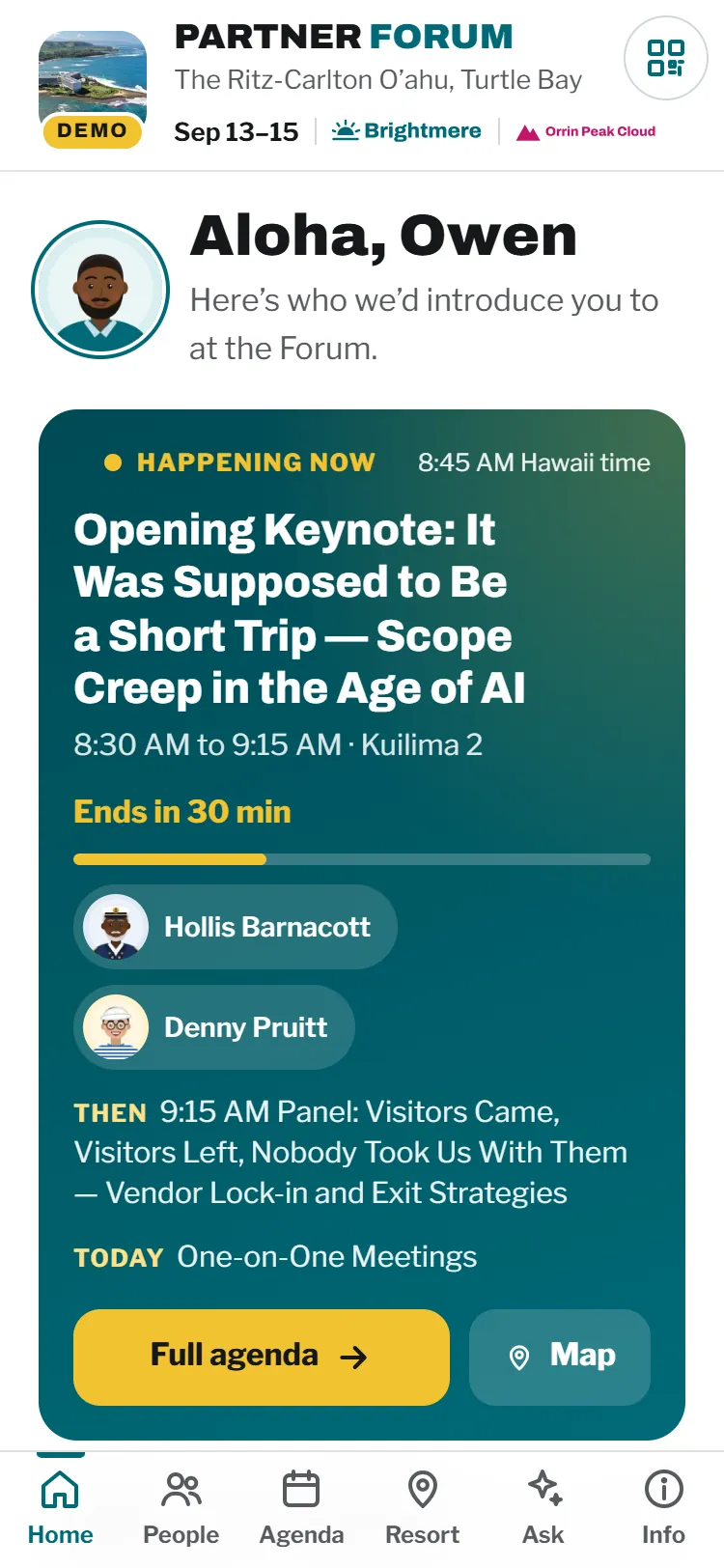
The Brightmere Partner Forum is a made-up three-day partner event at a Hawaii resort, with every feature switched on, a castaway-themed agenda and a cast of entirely fictional people. Tap around, rate a session, post an announcement as the coordinator. Nothing you do there is saved or sent anywhere.
 On a laptop?
Point your phone's camera at the code to open the demo there, where it's meant to be used.
Make it an app in 10 seconds
- iPhone or iPad (Safari)Tap the Share button, then Add to Home Screen.
- Android (Chrome)Tap the ⋮ menu, then Install app or Add to Home screen.
- Windows or Mac (Chrome or Edge)Click the install icon at the right end of the address bar.
Not sure? The app shows these steps for your own phone: tap Use it like an app on its Home screen.
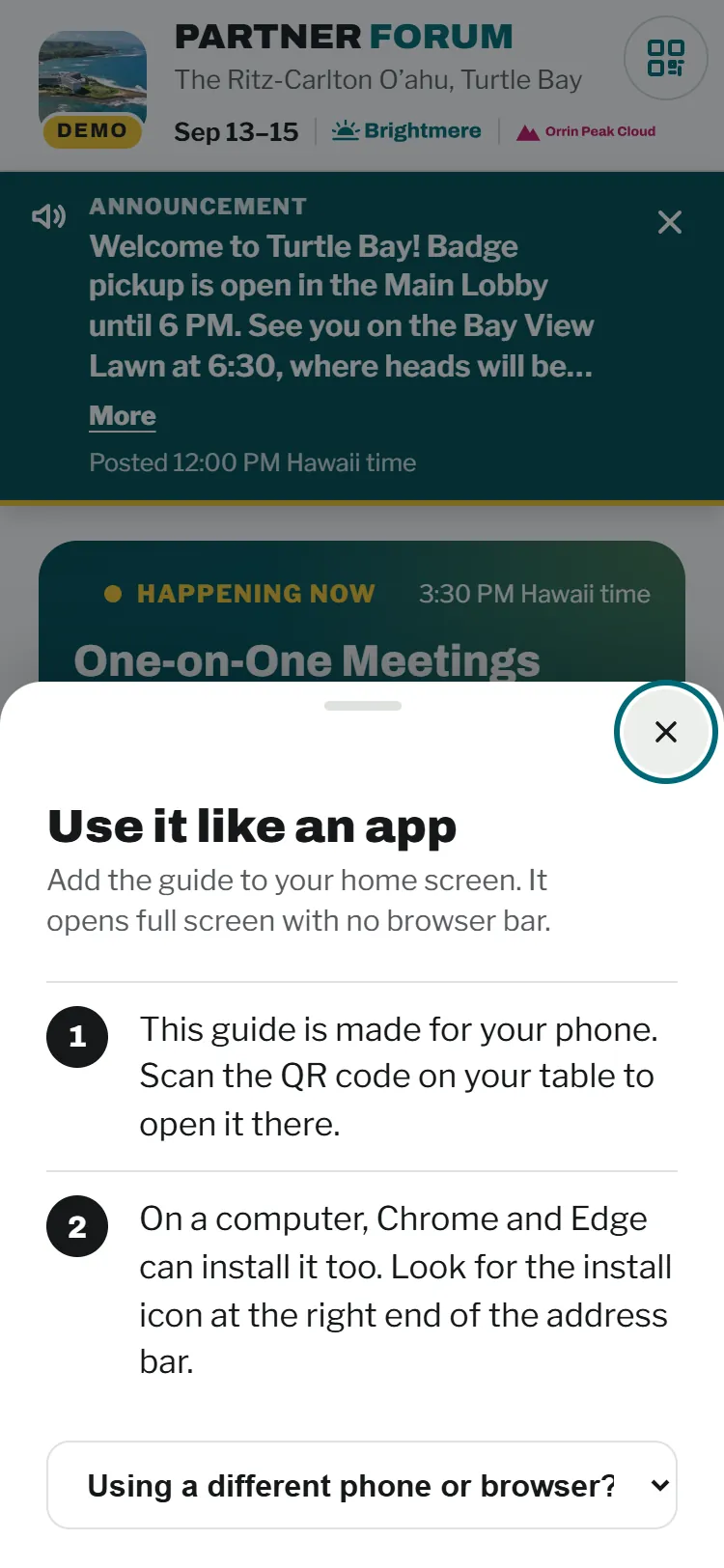
Install help
Every app walks attendees through it on their own phone.
⚡Works offline
The agenda, map, speakers, notes and contacts load from the phone, so a dead ballroom or weak resort Wi-Fi doesn't matter. Live updates catch up when the signal returns.
⛶Opens like an app
Full screen, no browser bars or tabs to hunt for, and it opens straight to "happening now".
◎Its own icon
One tap from the home screen, next to the airline and hotel apps, instead of buried in an email.
↻Always current
When you change something, phones get a "new version ready" prompt. No app store, no reinstall.
1 · The finished product
What attendees get
It's a web app, so there's nothing to download from an app store. Attendees scan a QR code, tap "Add to Home Screen", and it behaves like a native app: full screen, its own icon, and it still works with no signal. These are real screens from the live demo. Your event's look and content replace them.
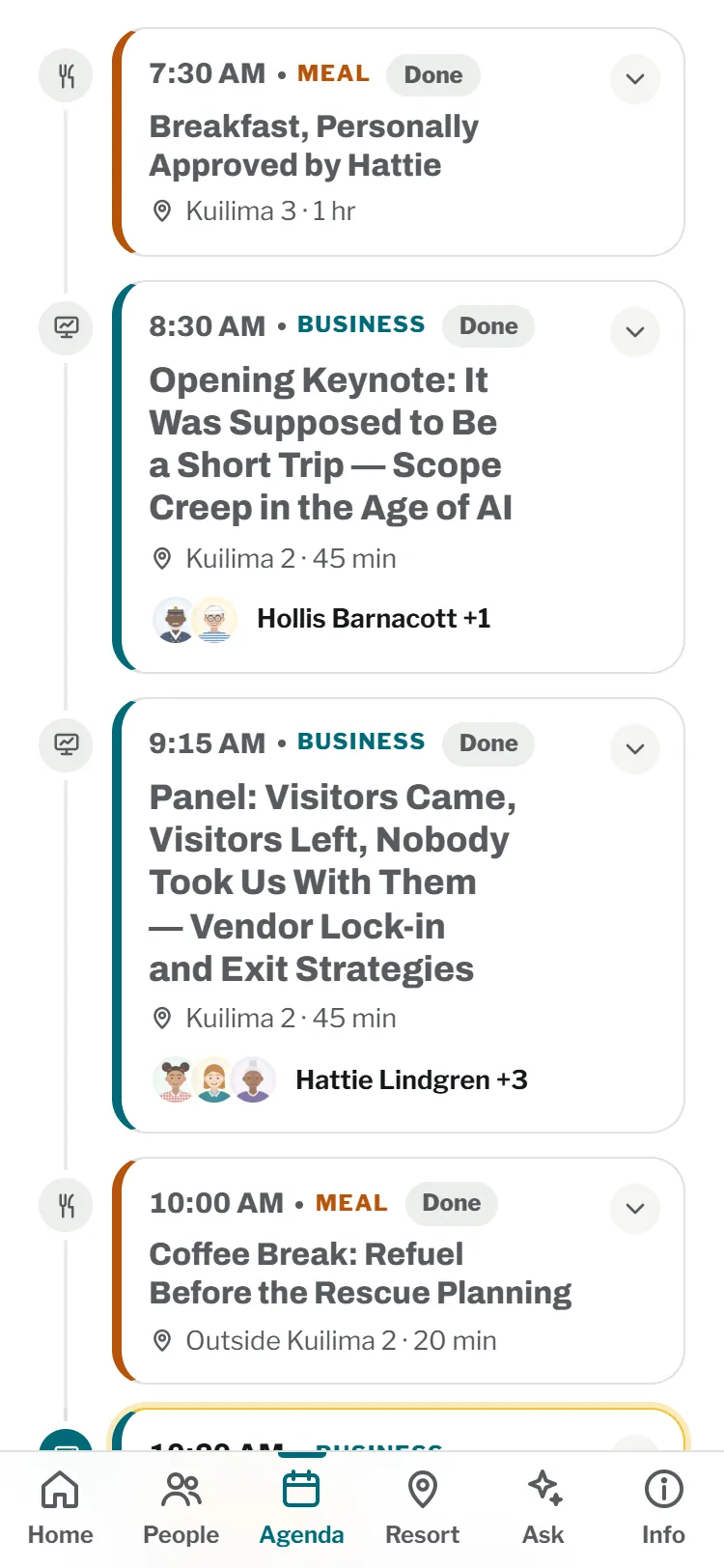
Agenda
Day by day, with a live "now" marker, rooms, speakers, and add to Outlook or phone calendar.
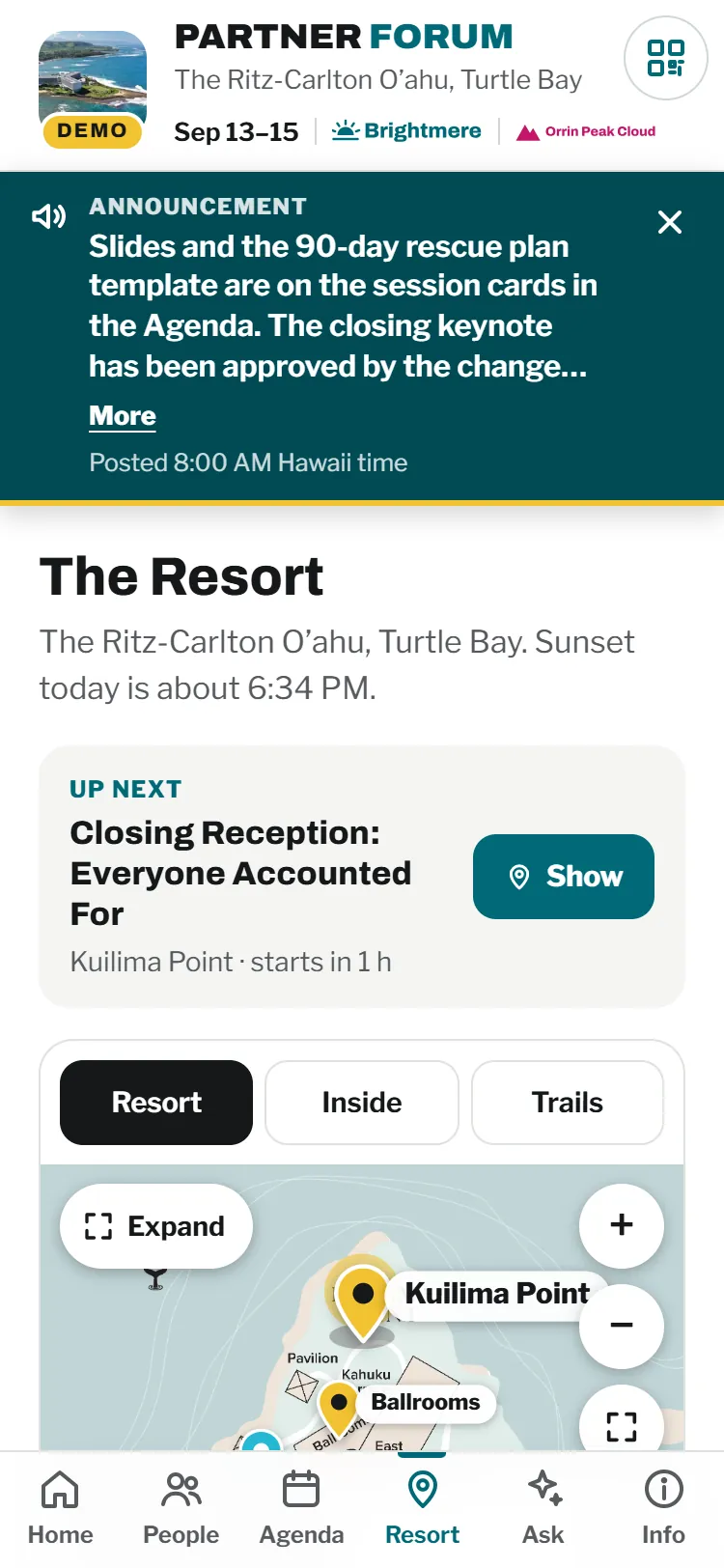
Venue map
An interactive map with pins, hours and directions. The simple agenda uses location cards instead.
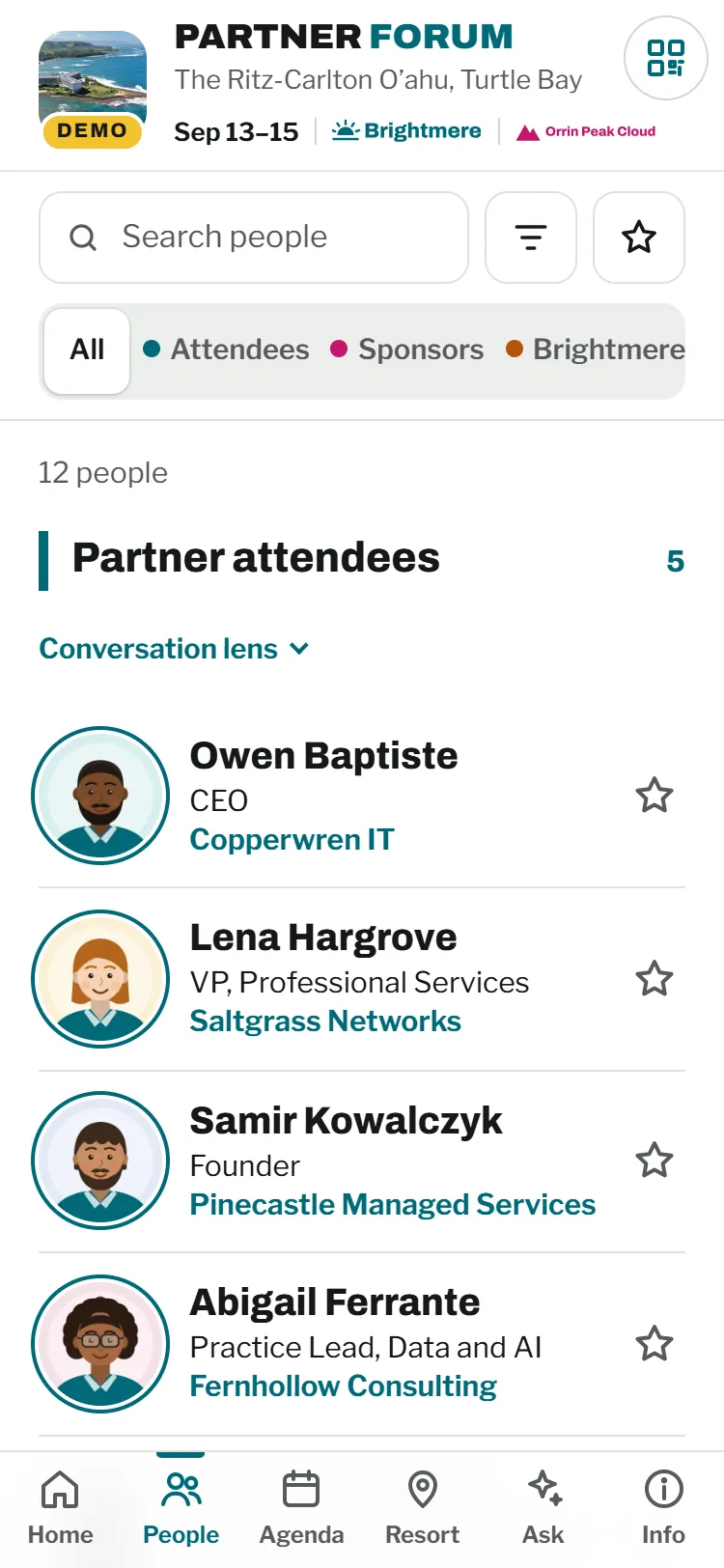
Directory
Everyone at the event with photos, bios and topics to ask about. Star the people you want to meet.
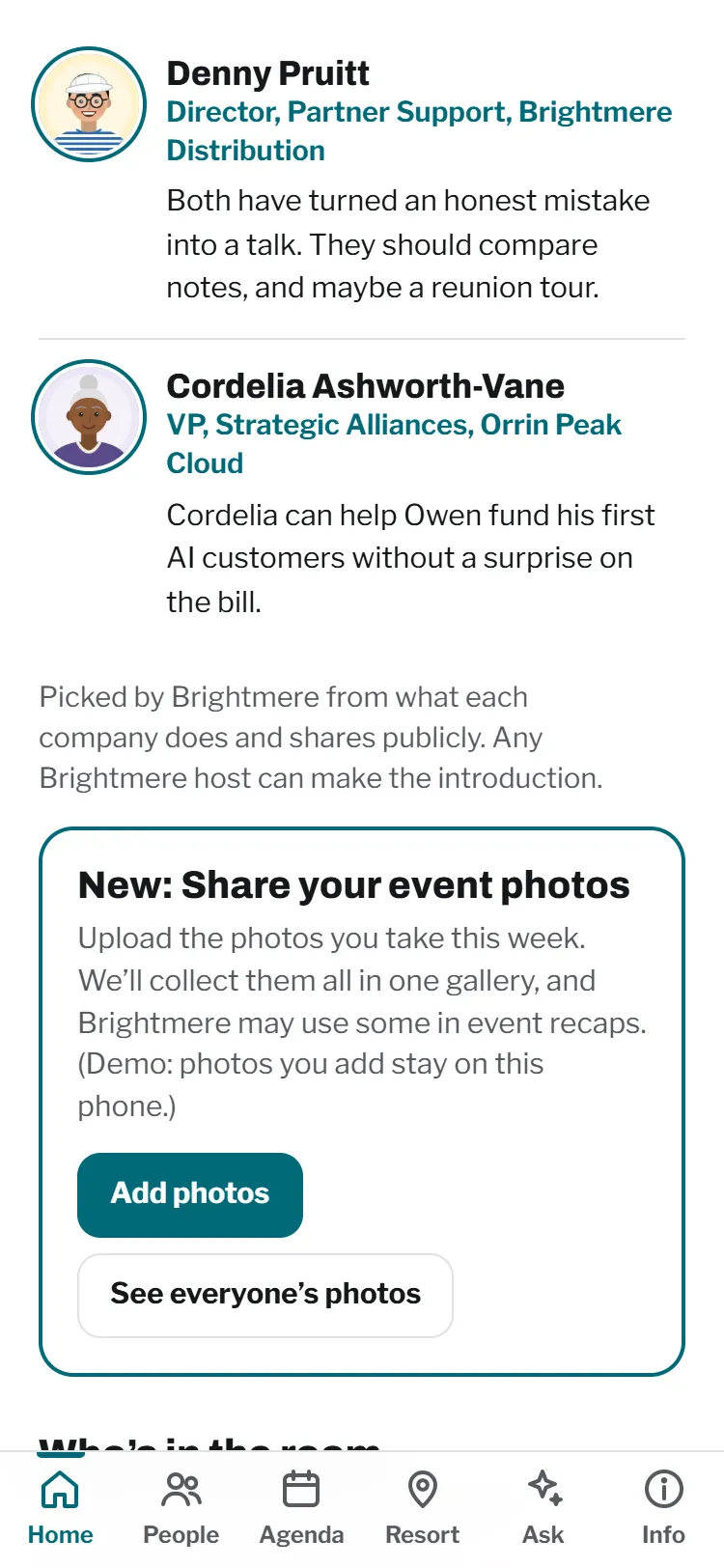
Worth meeting
Three people each attendee should meet, with a reason. Claude proposes them and you approve every one.
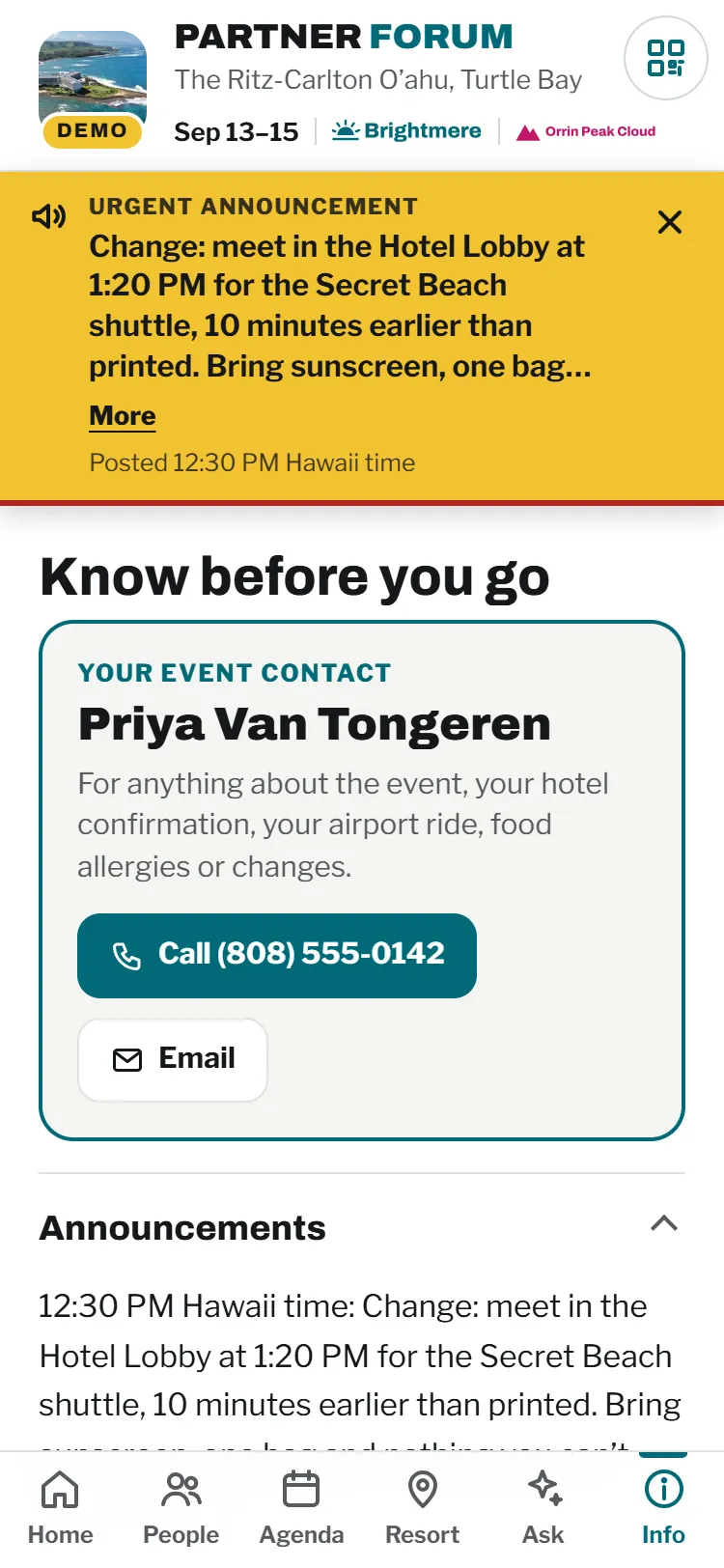
Announcements
Your host staff post a banner to every phone, as info or urgent, from their own phone.
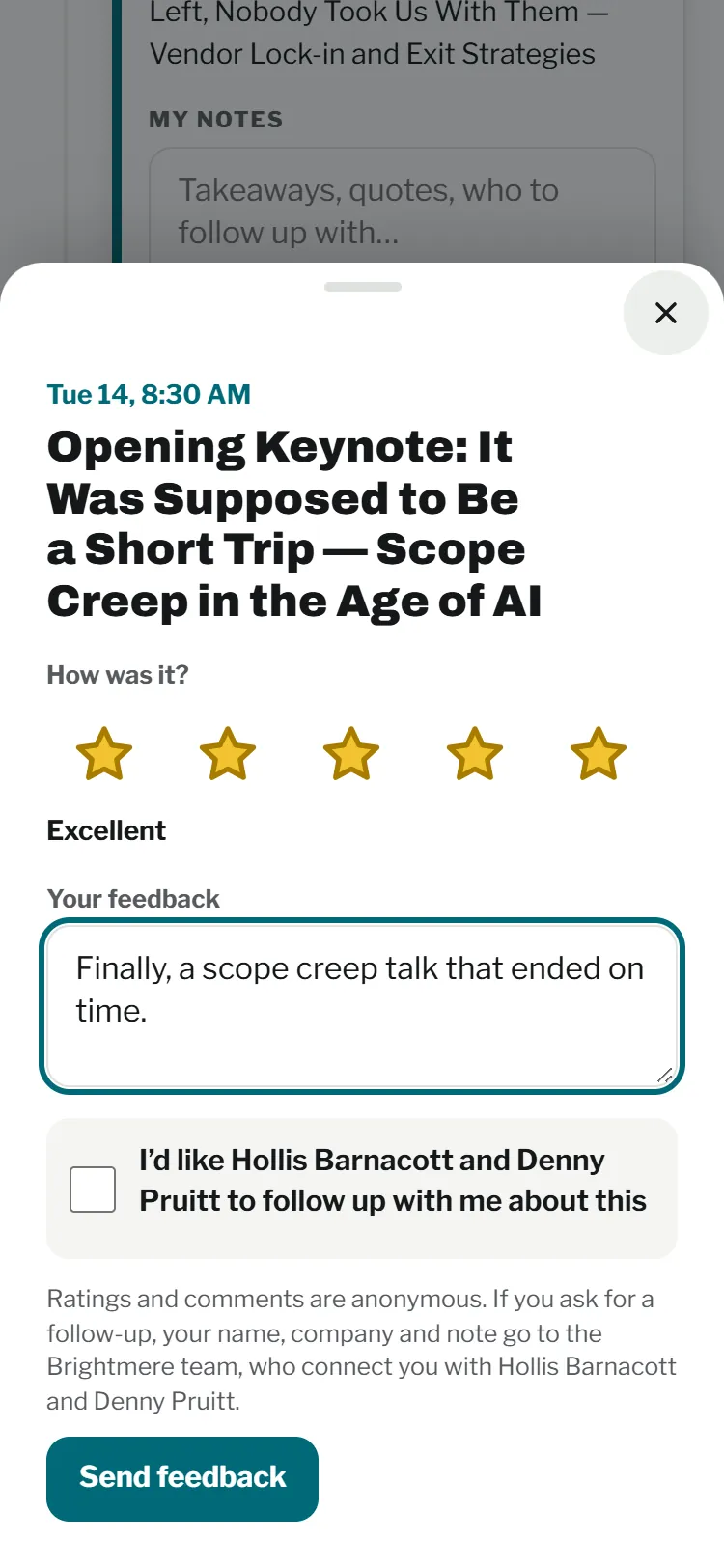
Session ratings
Stars, two short questions, and "ask the presenter to follow up". Anonymous unless they ask for a follow-up.
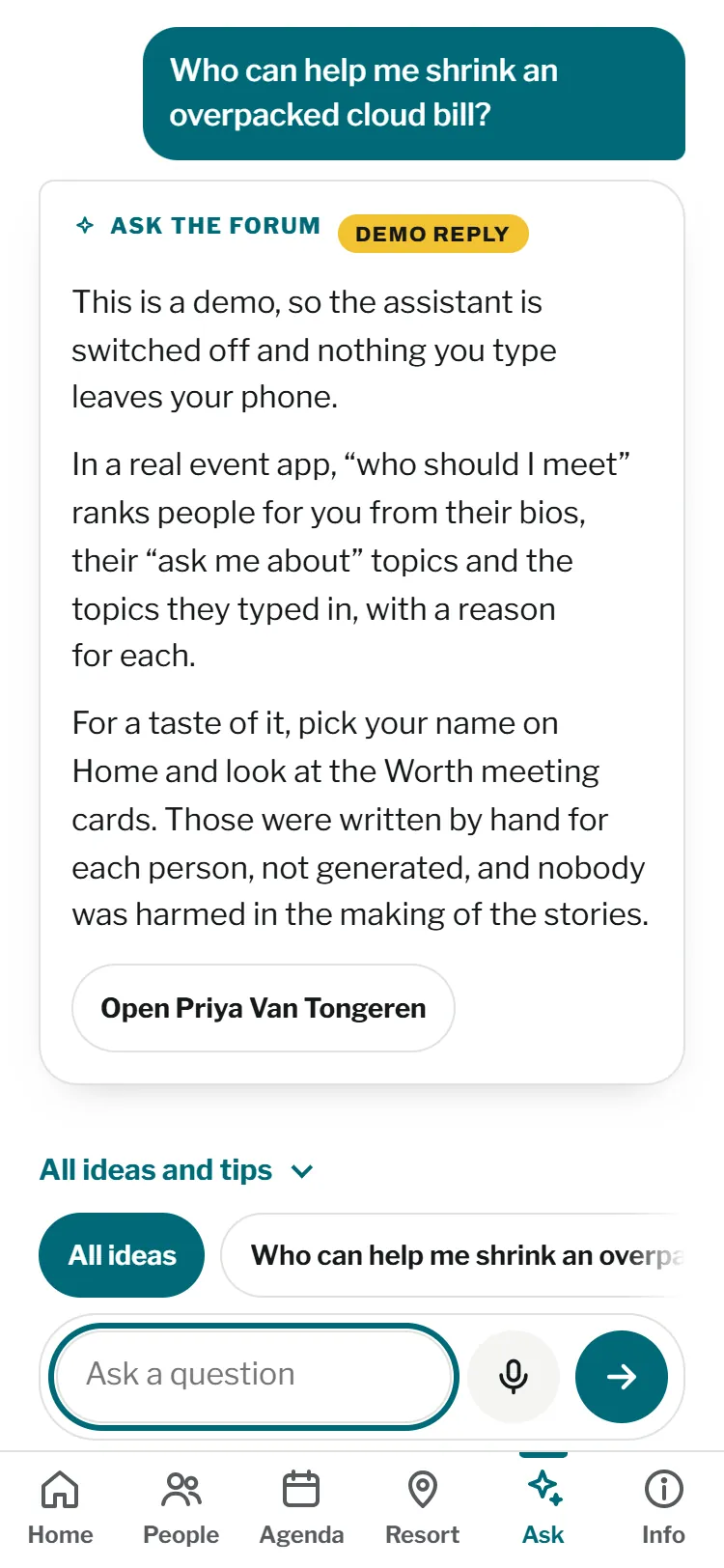
AI assistant
Answers from your event's own information first: schedule, venue, who's who. In the demo it explains what it would do.
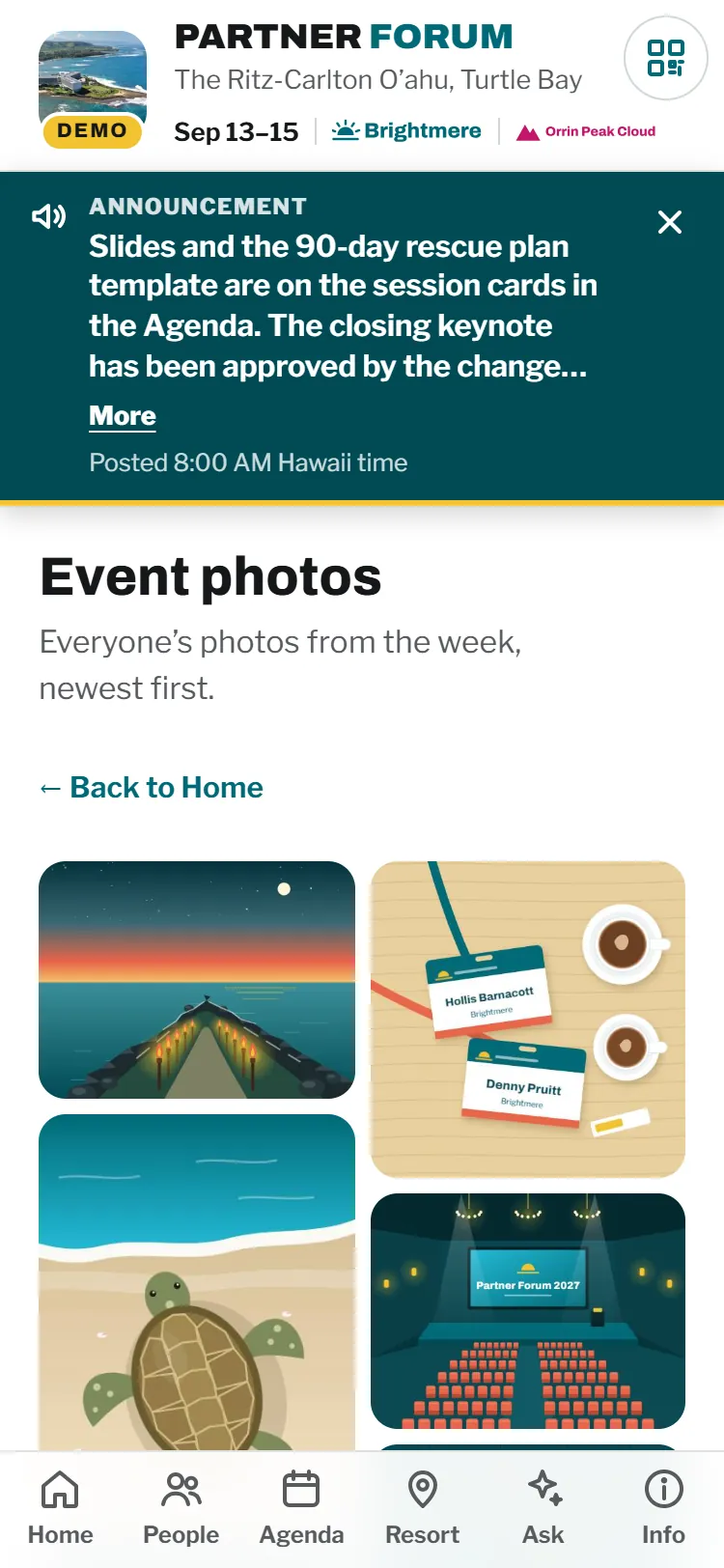
Photo wall
Attendees share photos to one gallery. Your team can remove any photo.
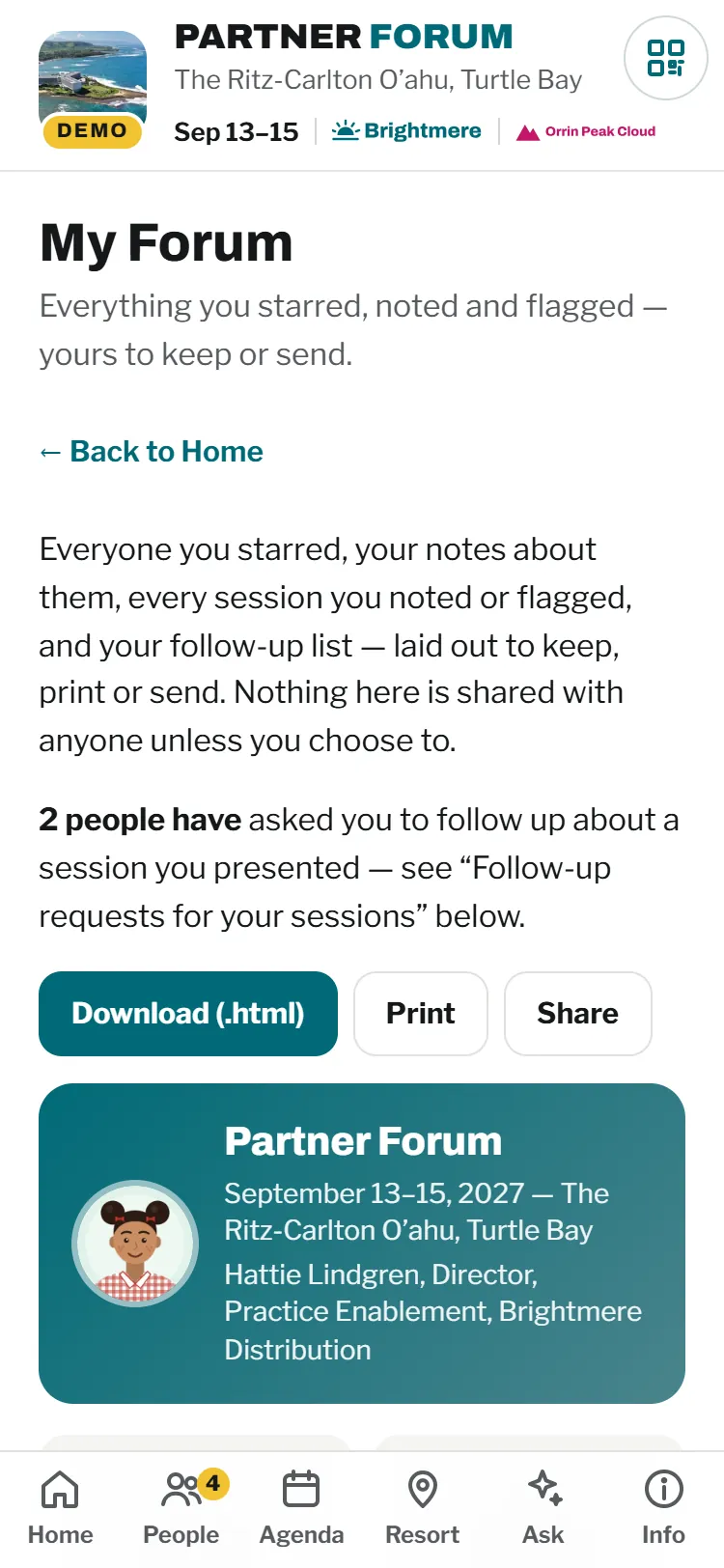
Your recap
Everything each person noted and starred, ready to download after the event.
Always included
Installs like an app, works offline, a live "happening now" card, add-to-calendar, dark mode, large tap targets, and a "new version ready" prompt when you update it mid-event.
Try the demo
Open the live demo app on your phone: a made-up partner forum at a Hawaii resort, with every feature switched on. Nothing you do there is saved or sent anywhere. It's modeled on TD SYNNEX's Executive Summit guide.
Your look, not ours
Keep the TD SYNNEX look, pick a ready-made theme, or bring your own colors and logo. Or just give Claude your website: it pulls your logo and brand colors (and your partners' logos) from official sources and shows you each one, with where it found it, before using it. The setup form shows a live preview, and Claude checks every color for contrast in light and dark mode. For the home-screen icon, jot down an idea (or none) and Claude sketches three concepts that weave your logo and theme together, shown at real phone size, then builds the one you pick.
2 · Minimum requirements
What you need to host it
The app is a single web page. On its own, on any normal website, it already does most things. Some features need a small online service behind it, called a backend. You only set one up if you pick a feature that needs it.
The page on its own
- A website that serves files over HTTPS: GitHub Pages, Azure Static Web Apps, Netlify, your IT team's server…
- You can upload 3 files plus an
assetsfolder - Ideally at the site root. A subfolder works with a small adjustment
Covers the agenda, speakers, venue, maps, info, calendar, offline, notes, the recap and suggested connections.
Shared, live features
- A free Cloudflare account. Your page doesn't move; it just talks to small Cloudflare functions
- Someone with Claude Code on a laptop (Node.js and Python) to deploy and run it
- No card needed. A card is only needed for very large photo walls
Adds announcements, ratings, photo wall, presenter slides, sign-in across devices, profile photo upload, the event code and PIN sign-in.
The Claude assistant
- Everything in Level 2
- An Anthropic API account with a payment method and a spend limit. It's separate from a Claude.ai subscription
- Open it weeks ahead, because new accounts start with low limits
Adds "Ask the event", "who should I meet" and "find our common ground".
Why some features need a backend
A web page on its own can't do three things: share data between attendees (an announcement, a photo), keep a secret (the AI's key, a team PIN), or enforce a rule (rate limits, "only this presenter can replace this deck"). Every Level 2 and 3 feature exists to do one of those.
Tech tips: the page and its host
- Files:
<event>.html(single self-contained file with inline CSS, JS and fonts),<event>-sw.js(service worker),<event>.webmanifest, andassets/(icons, map images, QR code). - HTTPS is required for the service worker (offline) and install. The service worker registration, its precache list and the manifest use absolute
/paths. Serve at the site root, or rewrite those paths for a subfolder. If the manifest file is missing, the page falls back to an inline manifest. - Update bar: the page sends a HEAD request to itself about every 20 s while open. It needs the host to send
ETagorLast-Modifiedheaders, which almost all hosts do. GitHub Pages caches for 600 s, so a fix can take up to 10 minutes to reach phones. - Corporate CMSs and SharePoint usually strip scripts or wrap pages, so they won't work. Use a static host instead. Claude can draft the request to your IT team.
- The original site runs on GitHub Pages, with Cloudflare handling DNS only (not proxied). The backends run on
*.workers.devon Cloudflare's free plan.
Tech tips: the backend (Cloudflare Workers)
- Up to four Workers, each a
fetch()handler:usage(announcements, feedback, profiles, sign-in, sync, event code, PIN, admin),photos,materialsandai. They share one D1 (SQLite) database. Photo and deck bytes live in Workers KV. Moving them to R2 is a small code change Claude can make for very large photo walls. - Free-plan limits (reset 00:00 UTC): 100k requests a day; D1 5M rows read and 100k written a day; KV 1,000 writes a day and 1 GB total. Each photo costs 2 KV writes, so plan for about 450 uploads a day without a card. The app's own caps reset at the event's local midnight.
- CORS: every Worker allows only your site's origins (
ORIGINS) and checks Origin and Referer. Two exceptions: the public image route, and file downloads. - Secrets go in with
npx wrangler secret putand never into the HTML, the repo or chat. Plain settings go in thevarsblock ofwrangler.jsonc, because dashboard edits are wiped on the next deploy. - Venue Wi-Fi is one shared IP address. Per-connection caps are deliberately high, and real limits are per device.
- Some company proxies block
*.workers.dev. Test from a company laptop a week ahead. The fix is an allow-list entry, or a custom domain if your domain uses Cloudflare DNS. - Not on Cloudflare? Supabase, Azure, Netlify or AWS can host equivalents with porting work, except profile photo upload, which runs only on Cloudflare. Check the function timeout first, because a question can take up to 45 s and a common-ground brief up to 70 s.
Tech tips: secrets, per-event values and data files
- Secrets, only for the features you turn on:
ANNOUNCE_PIN, withPHOTO_PINset to the same value, because one in-app team PIN is sent to both;ANTHROPIC_API_KEY, plusANTHROPIC_WORKSPACE_IDonly if the key isn't workspace-scoped;GATE_CODE,GATE_SECRETandGATE_CONTENT_KEYfor the event code;PIN_PEPPERandADMIN_PINfor PIN sign-in.
- Change these for every event:
- the Worker URLs, and the four production-host flags in the page (
TRACK,FB_SEND,MAT_SEND,PROF_SEND); - the
localStoragekey prefix; ORIGINS;- the timezone in each Worker's
hstDay(), so daily caps reset at the event's midnight; - the ICS UID domain, and every venue-specific word of copy.
- the Worker URLs, and the four production-host flags in the page (
- Data lives in
event.json,agenda.json,people.json,places.jsonandinfo.json(field formats inreferences/data-templates.md); the page embeds them asEVENT,AGENDA,PEOPLE,PLACES,INFO,GROUPSandTEAM. The event contact (TEAM) must be yours, never the original's. Thennode tools/build-ai-data.jsgenerates:- the AI's grounding files;
- the gitignored
private/*.jsoncards; - the roster and speaker maps for the usage and materials Workers.
sitemap.xmlonly while the content-library (playbook) block is kept; remove that block for events without one. - Operator tools (Python and Node) all need
wrangler login, so give two staff access:- a live status check;
- an announcements command line;
- feedback and usage reports;
- sign-in admin:
summit-claims.py --reserve-hosts / --reset / --purge.
pip install playwright segno pillow.
4 · Security and team tools
Who gets in, who's who, and who's in charge
An event app is a web page, and by default anyone with the link can open it. Two optional locks decide how much that matters for your event, and your host company's staff get team tools on top. You pick them in the setup form's Security and access group.
Open link
Anyone with the link sees the agenda, speakers and, with a directory, names, titles and bios. Right for most agendas. Nothing to set up.
Event code
One shared code, typed once per phone. Until it's right, the page is encrypted, so forwarding the link or reading the page source shows nothing.
PIN sign-in
Each attendee claims their name with a 4-digit PIN. Notes, starred people and anything personal belong to that person on every device they sign in with.
How claiming your name works, with PIN sign-in
- Find your nameTap it in the list and set a 4-digit PIN. This phone is now you.
- Add a deviceA laptop or second phone asks for the same PIN.
- Taken already?Tap "That wasn't me". Your team gets a red badge, and an email if you set one up.
- Show your IDA host checks it in person, resets the name and reads out a one-time code.
- You're backEnter the code, set a new PIN. Whoever took the name was signed out at the reset.
Guessing doesn't work: five wrong PINs lock that phone for 15 minutes, and ten in a day pause new sign-ins for that person and alert your team.
Team tools for your host company
Announcements
A banner at the top of every phone, as "info" or "urgent", for 1 to 48 hours. Staff from your host company sign in as themselves, then post or clear it with the shared team PIN. An operator can also post from the command line.
Photo moderation
Signed-in staff see a remove button on every photo, protected by the same team PIN. Removed photos are hidden, not deleted, so a mistake can be undone.
Admin panel
In Info, Team tools: open reports, every attendee's sign-in state and devices, and reset, new code, undo (within 30 minutes), release, unpause and sign out a device. Opens only with the admin PIN, on a phone signed in as a host.
Why announcements are a feature, and the locks are add-ons
Announcements use the backend and sign-in that Live event already sets up, cost nothing extra and are the tool your team uses most on the day, so they're simply part of Live event. The event code and PIN sign-in add a step for every attendee and secrets for you to manage, so you turn them on deliberately.
Your event coordinator is the human backstop
Every help screen points to the coordinator you name in the setup form: the Home help card, the Info tab, the map's help card, "That wasn't me", "Lost your code?" and the AI assistant's "confirm with" answers. Pick someone who'll actually be on site.
Tech tips: what's under the covers
- Event code. At deploy time,
tools/seal-event-app.mjsgzips every inline body script and encrypts it with a random 256-bit AES-GCM key.POST /gatereleases that key only for the right code, so the code can't be tested offline against the file. Lockout: 5 wrong tries per device and 60 per connection per 15 minutes; a right code gives the connection count back, so a venue's shared Wi-Fi doesn't lock itself out at check-in. The device keeps an HMAC-signed token and the key forGATE_DAYS(default 30), so the app opens offline. A code checked only in the browser is cosmetic, which is why there isn't one. - PINs and codes are stored as
HMAC-SHA256(PIN_PEPPER, salt|person|pin), with a random 16-byte salt per person and a pepper that exists only as a Worker secret. A copy of the database alone can't be brute-forced. Nothing is ever stored on the phone except a random 24-character device token, and the server keeps only its SHA-256 hash. - Limits are server-side: 5 wrong PINs per device per 15 minutes; 10 per person per 24 hours pauses new sign-ins and files a "guessing" report. A reclaim code lasts 24 hours and is single-use; 10 wrong tries pause code entry for 15 minutes but never burn the code, and an expired code leaves the name reserved, never free, so a squatter can't race for it.
- Admin sessions last 12 hours and need both the admin PIN and a device bound to a host-group person, so the PIN alone isn't enough. A reset requires the admin to confirm an ID check. Reset, release and sign-out also end any admin session on the affected devices.
- Team PIN (
ANNOUNCE_PIN, withPHOTO_PINset to the same value) is checked on the server with its own lockout. Announcements are capped at 280 characters. Team writes and admin actions are blocked in rehearsal mode and on preview hosts. - Alert emails go through Cloudflare Email Sending, throttled to 1 per person per hour and 20 per hour overall; the in-app badge shows every report and refreshes every 60 seconds.
- What the locks don't cover: only
/idand/admincheck the gate token. The announcement feed, photos, materials and the AI check only that requests come from your site. Never put anything in the app that would hurt if a guest saw it. - Cleanup: on the date you set (default 30 days after the event),
tools/summit-claims.py --purgedeletes PINs, devices and reports.
5 · Setup, step by step
How to set up your app
You do five things, in this order: install the skill, gather your documents, fill in the setup form, give Claude the file it creates, and review what Claude builds. Install the skill first. The config file from the form only works once Claude has the skill. Here is every step, in order. A simple agenda takes about an afternoon. A full summit app takes a few sessions plus your review time.
Where you work matters
The setup form runs in any browser. For the build, Claude Code on a laptop with Node.js and Python can do everything. The Claude app handles planning, content, venue research and a simple agenda's pages. Deploying a backend (including the AI assistant) and making the home-screen icon and QR code need Claude Code, or a technical colleague who has it.
Install the skill Do this first
The skill is what teaches Claude to build your app. Install it once, before anything else. Pick the way you'll work with Claude.
Claude Code (recommended)
Make an empty folder where your app will live and open Claude Code in it. Then either:
A. Let Claude install it. Paste this:
PromptDownload https://copilotplaybook.com/assets/downloads/td-synnex-event-app-kit.zip into this folder and unzip it here, so the skill ends up at .claude/skills/td-synnex-event-app. Check that .claude/skills/td-synnex-event-app/SKILL.md is there, confirm the td-synnex-event-app skill is available in this project, and tell me the next step.
B. Or do it yourself. Download the Claude Code kit and unzip it into that folder. You should see
.claude/skills/td-synnex-event-app/SKILL.md, withexecutive-summit.htmland theworkersandtoolsfolders next to.claude. Start a new Claude Code session in the folder.The kit holds the skill plus the Executive Summit app it builds from. Keep them together, and keep your event's files in the same folder.
Claude app
- Download the skill zip. Don't unzip it.
- Open Settings → Capabilities → Skills, choose Upload skill and pick the zip.
- Switch it on, and work in a Project for this event.
Deploying a backend, the event code and PIN sign-in need Claude Code.
5 minutesCheck it worked
PromptIs the td-synnex-event-app skill available to you? If it is, tell me what it does and what I should attach first.
If Claude says no, start a new session in that folder (Claude Code) or check the skill is switched on (Claude app).
Gather your documents
Collect what you already have. Don't wait for everything: anything that isn't ready can be marked "Later" in the form and added when it arrives.
- Agenda: your latest version, with rooms if you have them.
- Speakers: names, titles, companies, short bios, headshots.
- Attendee headshots, optional: send the ones you have, or let people add their own in the app with Profile photo upload.
- Venue: its website link, plus anything the venue sent you: fact sheet, floor plan, property map, welcome letter, BEOs.
- Attendee list, if you want a directory: name, title, company and group, with emails and phone numbers removed.
- Your event coordinator: the one person attendees call, text or find on site, with a number and email you're happy to publish.
- Logistics: check-in, what's included, dress, travel and transfers, guests, dietary and cancellations.
- A location photo you're allowed to use (most venues have a media kit), or Claude can make an illustration.
- For host and partner knowledge: the hosts who'll fill in a short form, and your Public Signal Brief prompt if you use one.
- For suggested connections: registration answers (goals, priorities, who they hope to meet), and optionally your own shareable notes.
- Branding: your logo and two brand colors, or your website address so Claude can find them, or just a ready-made theme. For partner and sponsor logos, attach them or list each company's website and let Claude find them. Have a thought about the app icon? Bring it, even a rough one.
15–30 minutesBefore you attach anything
Black out room rates, minimums and contract pricing in venue documents. Never include sales figures or anything confidential.
Want the AI assistant?
Open the Anthropic account now. New accounts start with low limits that take time to grow.
Fill in the setup form
The setup form walks you through nine short steps: a start page, your event and coordinator, look and brand, features, hosting, venue, people and roles, documents and Claude models, then a review. It only asks what your choices need. When an option needs something you haven't picked, it says why and offers a one-click fix. It warns you if anything looks like a password or confidential figure, and saves your answers in the browser as you go.
15–20 minutesYou finish with a checklist
The last step lists everything you said you'd provide, grouped: what to attach, what comes later, what to confirm, who to line up, which accounts to open and which secrets you'll choose at the terminal. Tick it off as you go, copy it into an email, or print it.
Download your config file
On the last step, check your plan summary, then click Download to save
event-app.config.json. That one file holds every answer. It contains no passwords or keys.If Download does nothing
Some viewers, such as a page shared from Claude, block downloads. Click Copy instead and paste the text into the chat in the next step.
Keep it handy
You can load the file back into the form later to change your answers, then download it again.
Give Claude your config file
With the skill installed (step 1), start a chat in the same place.
You do
Open Claude Code in the folder where the app will live (or the Claude app with the skill on). Put
event-app.config.jsonand your documents in that folder (in the Claude app, attach them to the chat), then say:Use the td-synnex-event-app skill with my event-app.config.json.Claude does
Reads the file, double-checks your choices against the rules, and scans it for anything sensitive. It doesn't ask you again what you've already answered.
Approve your plan
5–10 minutesClaude does
Shows a one-page plan: features, hosting, costs, what you'll do yourself and known limits. It asks only about anything missing or conflicting.
You do
Answer those few questions and say yes. Nothing is built before you approve the plan.
Review the content and research
Claude does
Turns your documents into the app's content, researches the venue, proposes suggested connections if you chose them, and lists anything it couldn't verify.
You do
Confirm the unverified items and map pin positions, and approve suggested connections and any research.
Preview the app
Claude does
Builds the app and checks it in a browser at phone and desktop sizes, in light and dark mode.
You do
Try it on your phone, including rehearsal mode, which shows the app as it will look at any moment of the event.
Tech tips: rehearsal and checks
- Add
?now=2027-03-04T09:30to the URL to see any moment of the event. Analytics, uploads and sign-ins are switched off in rehearsal. - The pre-launch checklist covers 44 px tap targets, visible focus rings, reduced motion, an offline cold start, and the update bar after a republish.
- With the AI on, Claude runs the 38-case audit before launch: 35 questions with facts that must and must not appear, 1 common-ground brief, and 2 attempts to extract the prompt. It costs about 15–25¢ per run.
- Add
Set up accounts and publish
You do
Create any accounts your plan still needs: a free Cloudflare account, plus the Anthropic account you opened in step 2 if you have the AI. You type passwords, card details and keys yourself. Claude never does.
Claude does
Runs the setup commands, connects everything, publishes the app and checks it on the real address. This step needs Claude Code, or a technical colleague who has it.
Tech tips: the deploy, in order
npx wrangler login, thenwrangler d1 createandkv namespace create, then apply eachschema.sql(always the usage one).- Edit
ORIGINS, the Worker URLs and the host gates in the page, runnode tools/build-ai-data.js, set secrets withwrangler secret put, andwrangler deployeach Worker. - With the event code, seal the page with
node tools/seal-event-app.mjson every deploy, and publish only the sealed file. - For Anthropic, use a dedicated workspace with a monthly spend limit, and a workspace-scoped key that expires shortly after the event.
Go live, and keep it current
Claude does
Hands you a day-of runbook: who posts announcements, how to check health, how to reset a sign-in, and how to switch the AI off.
You do
Print the QR code. Then paste every new email or document into the chat as it arrives, right up to the event.
6 · The most useful habit
Keep feeding Claude new information
Event details keep arriving until the doors open: the know-before-you-go email, a revised agenda, a new speaker, the dinner moving, shuttle times. Every time something new comes in, during the build or after launch, paste it into the chat and ask:
"Here's our latest know-before-you-go email. What can you do with this to make the app better?"
Claude pulls out every detail
Arrival times, dress, transport, hotel details, contacts, plan B. Each detail is matched to the right place in the app.
Shows you what's new or conflicting
"The email says doors open at 8:00, the agenda says 8:30. Which is right?" Nothing is overwritten silently.
Leaves out what shouldn't be public
Personal numbers, pricing and internal notes are left out. Wi-Fi passwords and door codes go in only if you say so, because the page can be read by anyone with the link.
Updates and republishes
Once you approve, phones see a "newer version" prompt. Urgent same-day changes can also go in the announcement banner.
The know-before-you-go email usually arrives a few days out, and it carries the most practical detail of anything you'll send. Pasting it is what makes the app a true one-stop shop for the event.
7 · Working with Claude
Six habits that make the build go well
You don't need to know how to "prompt". You need to give Claude the real documents, say what done looks like, and read the plan before you approve it.
1 · Attach the real thing
The agenda spreadsheet, the venue's PDF, the bios as you have them. Word, PDF, Excel, CSV, images and pasted email text all work. In Claude Code, drop files in the project folder and name them; in the Claude app, attach them. Redact pricing and contact details first. If a file won't attach, paste its text.
2 · Say what done looks like
Name the thing, the source and the outcome: "Add the shuttle times from this email to the hotel card, and tell me if they clash with the agenda." Weak: "Fix the hotel." Not sure how to ask? Ask Claude what it needs: "What would you need from me to build the Locations tab?"
3 · Paste new info and ask what it can do with it
One message per new document is fine. Don't wait to batch things. The habit above.
4 · Read the plan before you say yes
The one-page plan (the build manifest) is the contract for everything after it. Check the feature list, where the page will live, who creates which account, and the "known limits" line. Say "change X, then show me the plan again."
5 · Review like an attendee
Open the draft on your phone and look for what an attendee would trip on: a wrong room, a missing dinner address, a misspelled name. Say exactly what you saw: "Day 2 lunch shows the Terrace; it's in Salon B."
6 · Keep the manifest file; start new chats from it
Claude saves the approved plan as event-app-manifest.md in your project (a download in the Claude app). To continue in a new chat, attach it with your latest config and say "Continue the event app from this manifest."
Correcting Claude is normal
If an answer looks wrong, say so and why. The fix is usually one message. For which model does what, see the next section; the short version is: let Claude pick, and tell it if you'd rather it didn't.
8 · Money, accounts and privacy
Costs, accounts and your data
| Account | Needed for | Cost | Who sets it up |
|---|---|---|---|
| A web host (GitHub Pages, Azure Static Web Apps, Netlify, your IT team's server…) | The page | Usually free | You or your IT team. Claude can draft the request |
| Cloudflare (free plan) | Any backend feature | $0 for most events | You sign up; Claude runs the setup |
| Anthropic API (platform.claude.com) | AI assistant | ~$0.008 / question $25–50 typical, prepaid | You create it, add a card and set a spend limit |
| Domain on Cloudflare DNS + Email Sending | Optional sign-in alert emails | Free to your own verified addresses ~$5/mo to email anyone else | Your domain admin |
| A private repo or folder for the source | Only with the event code, if your site is served from a public repo | Usually free | You. Claude sets up the publish step |
AI cost, from real usage
At the original ~40-person event, attendees asked about 0.1 questions per person per day. A typical question costs about a penny, mostly web-search fees. Above roughly 250 attendees, Claude grounds the assistant on speakers and hosts only, to keep it in Anthropic's cheaper price tier. A spend limit is the hard stop.
What's public
By default, anything in the page (names, titles, bios, photos) is visible to anyone with the link. The event code keeps it encrypted until someone enters the code, as long as the page's source isn't in a public repo. More on security.
What's private
Host and partner cards never show in the app; only approved entries are used. Your synthesized insights steer matching but are never published. Raw sales or confidential data is never used. The AI doesn't store questions.
Research rules
Claude never researches individual attendees online. Company research is company-level, one company at a time, with your approval. Images are never copied from the web.
Which Claude models do what
Venue research, company research, fact-checking and the final first-time-user review. Mistakes here reach attendees, so these steps use the most capable models even if your chat is set lighter.
Building the app and its data (Sonnet), and bulk work like turning a spreadsheet into the roster (Haiku). On Pro and Max plans the bigger models use your limits a little faster, so tell Claude if you'd rather keep one model throughout.
The attendee-facing assistant uses Claude Haiku for questions and Sonnet for the common-ground brief, billed to your Anthropic account. It never uses the biggest models, because a room full of people asking at once would multiply cost and wait time.
Tech tips: model routing
- In Claude Code, the skill runs heavy steps through subagents with an explicit
model(opus,fable,sonnet,haiku), whatever model the session uses. In the Claude app, Claude tells you when to switch models in the picker. - The skill deliberately doesn't set
model:in its frontmatter: that would switch your whole session, and it can break upload to other surfaces.
9 · Quick answers
FAQ and plain-English glossary
Do attendees need to download anything?
No. They scan a QR code or open a link. "Add to Home Screen" gives it an app icon, and it works offline after the first visit. The app's install helper walks people through it on iPhone, Android and desktop.
Can I start simple and add features later?
Yes. The data carries forward, so a simple agenda can become a full guide, and a static guide can gain a backend later.
I only have the Claude app, not Claude Code. Can I still do this?
Planning, content, venue research and a simple agenda's files all work in the Claude app. Deploying backends, the AI assistant, and making the icon and QR files need Claude Code on a laptop, or a technical colleague who has it.
Our website is on a company CMS. Will that work?
Usually not, because CMSs strip scripts. Ask IT for a small static host (Azure Static Web Apps is a natural fit for Microsoft-centric teams), or use free GitHub Pages. Claude can write the request to IT.
Is sign-in secure?
Without PIN sign-in, attendees just pick their name: convenient, but not a password. Turn on PIN sign-in for large or open events. Each person sets a PIN, and your team can restore a name after checking ID. How it works.
What happens to the app after the event?
You choose in the setup form: keep it up, or close it a set number of days after the event or on a date. Before it closes, attendees can download a take-home pack with their recap, the agenda, presenter materials and photos, depending on what you turned on, and a banner can remind them. On the close date the app shows a thank-you screen, and backend data like sign-ins and uploads is deleted.
Can attendees add their own photo?
Yes, if you turn on Profile photo upload (Live event). It's optional for attendees: they can add a headshot from their phone, crop it, and remove it whenever they like. You decide whether their photo can replace one you supplied. Pair it with PIN sign-in so nobody can change someone else's photo.
Who can post announcements?
Staff from your host company who are signed in as themselves and know the team PIN. They post from the Info tab on their phone, and the banner reaches every phone within a minute or so. An operator can also post from the command line.
Can I use our own colors and logo?
Yes. Pick a ready-made theme in the setup form, or choose "Your brand" and either enter two colors or have Claude pull them from your website. Attach your logo, or let Claude find it on your website or media kit. Claude uses only official sources, shows you everything it finds with the page it came from, asks you for anything it can't confirm, and adjusts any shade that's too light to read.
What will the app icon look like?
Claude sketches three concepts from your answer in the setup form: your logo blended with the event's theme, a symbol of the place or event, or initials. You see each one at full size and at real home-screen size, on light and dark wallpapers, and pick or ask for changes. Phones round or crop the corners, so the main shape sits in the center, with no more than two or three letters. The icon you approve also becomes the browser tab icon and the badge on your QR code.
What if something changes on the day?
Paste the change into the chat. Claude updates and republishes, and phones get a "newer version" prompt. With Live event, also post an announcement banner from your phone.
Glossary
?now= to see any moment of the event.